> For the complete documentation index, see [llms.txt](https://docs.fyxer.com/llms.txt). Markdown versions of documentation pages are available by appending `.md` to page URLs; this page is available as [Markdown](https://docs.fyxer.com/get-started/dashboard-tour.md).
# Dashboard tour
Learn how to customize how Fyxer works.
{% hint style="success" %}
* [What is the Dashboard?](#what-is-the-dashboard)
* [Categorization](#categorization)
* [Drafts](#drafts)
* [Notetaker](#notetaker)
* [Scheduling](#scheduling)
* [Chat](#chat)
* [Settings](#settings)
* [Profile and account](#profile-and-account)
{% endhint %}
### What is the Dashboard?
The [**Dashboard**](https://app.fyxer.com/) is where you fine-tune how Fyxer works for you.
You won't spend much time in the Dashboard day-to-day. It takes about 5-10 minutes to customize your settings once. After that, **Fyxer runs in the background.**
You'll only return here to:
* Update your preferences
* Review meeting recordings and summaries
* Use Fyxer Chat
Everything else – inbox organization, draft replies, and scheduling – happens automatically.
Let's go through each Dashboard section and look at the main things you might want to customise. Support articles are linked if you need help with this.
***
### Categorization
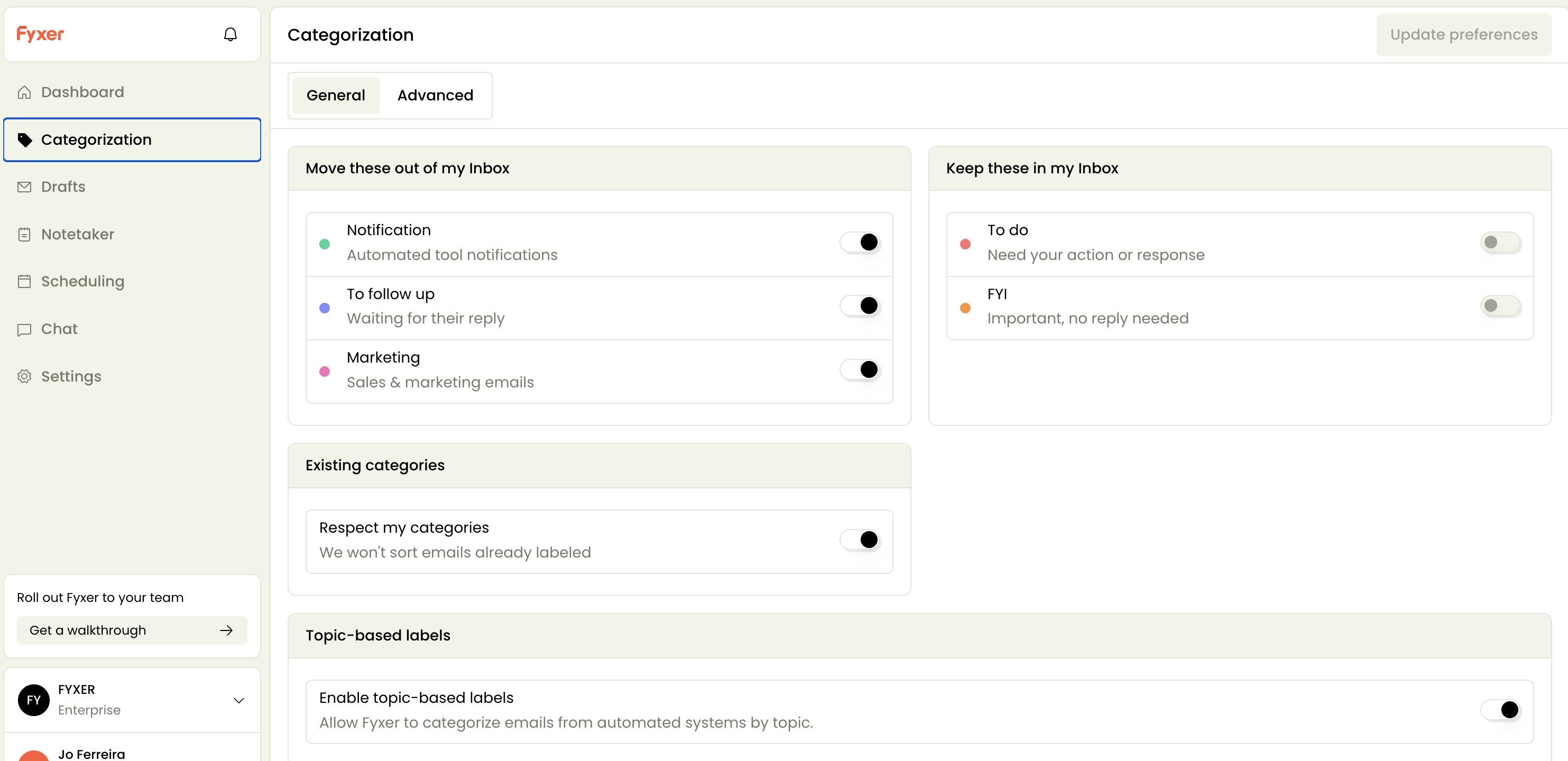
Fyxer organizes your emails into **categories**, labeled and ranked by priority. You can customize how this works.
From the left-hand menu, select **Categorization** and **choose which categories stay visible in your inbox** and which ones skip the inbox and get filed directly.
You may also want to:
* **Set up** [**custom email rules**](https://support.fyxer.com/article/setting-up-custom-rules-in-fyxer) to tell Fyxer how to handle certain emails. For example, you may want emails from a particular address or domain to always land in "To do" or "To respond"
* **Add an** [**alternative email**](https://support.fyxer.com/article/what-is-the-difference-between-connecting-another-email-vs-adding-an-alternative) if you use a second address or sometimes CC yourself. It helps Fyxer recognize it's still you, avoiding duplicate or irrelevant drafts
{% hint style="info" %}
Over time, Fyxer learns your preferences and adapts automatically, so you spend less time sorting, more time doing.
{% endhint %}
***
### Drafts
The next section on the Dashboard is **Drafts**. This is where you manage how Fyxer writes and follows up on your emails.
Go through and customize each of the settings below:
1. [**Choose how often drafts are created**](https://support.fyxer.com/article/how-often-drafts-appear-and-how-long-theyre-kept) and when they're automatically deleted
2. [**Adjust your follow-up timing preferences**](https://support.fyxer.com/article/track-email-follow-ups) to stay on top of replies you're waiting for
3. [**Add tone of voice guidance**](https://support.fyxer.com/article/make-your-drafts-sound-more-like-you) in the custom tone box
4. Switch to the **Signatures** tab and [**set up your email signature**](https://support.fyxer.com/article/email-signatures-setup-and-troubleshooting), so it appears automatically in Fyxer drafts. Outlook users: yours is extracted automatically when you connect
5. [**Upload** **custom files**](https://support.fyxer.com/article/upload-documents-to-improve-draft-accuracy) such as brochures, briefs, contracts, or key documents that **help Fyxer understand your work**
{% hint style="info" %}
The more relevant context you give Fyxer, the better it understands your world and the more natural your drafts become.
{% endhint %}
***
### Notetaker
The **Notetaker** section is where you manage and review all meetings connected to your calendar.
You'll see a **Record meeting** button, where you can record an in-person meeting, or upload an existing recording. Learn more: [**How to record a meeting in Fyxer.**](https://support.fyxer.com/article/how-to-record-a-meeting-in-fyxer)
Next to the record button is a gear cog. Here you can [configure how Notetaker behaves](https://support.fyxer.com/article/how-to-set-up-your-meeting-notetaker), including which meetings it should join, summary preferences, and custom words to improve accuracy.
You'll also see there are two tabs: **Recorded** and **Upcoming**.
Under **Recorded** you can:
* Review and [edit past meeting summaries](https://support.fyxer.com/article/customize-your-meeting-summaries)
* View meeting transcripts and actions
Under **Upcoming** you can:
* View and join upcoming meetings
* Check that Notetaker is scheduled to attend a meeting, or remove it from specific ones
You can also explore past meetings using the **Explore your meetings** pane on the right.
{% hint style="info" %}
Return here when you want to **manually record a meeting** or **revisit past recordings and summaries.**
{% endhint %}
***
### Scheduling
The **Scheduling** section is where you manage how people book time with you and how Fyxer handles meeting links.
In Scheduling you can:
* View booking activity and basic meeting stats
* Share your personal scheduling link (or team scheduling links)
* Select "Update meeting settings" and:
* Enable or disable your Fyxer scheduling link
* Choose whether Fyxer includes your scheduling link in draft emails
* [Add a third-party scheduling link (like Calendly)](https://support.fyxer.com/article/connect-calendly-to-fyxer)
Learn more: [**Set up your personal scheduling link.**](https://support.fyxer.com/article/set-up-your-personal-scheduling-link)
{% hint style="info" %}
Once your calendar is connected, scheduling links appear automatically in drafts and your availability is always up-to-date.
{% endhint %}
***
### Chat
The **Chat** section is your direct line to Fyxer. Ask questions, search your inbox, or draft emails from scratch.
Chat lets you:
* **Search your inbox or meeting notes** for specific information
* Find **past email threads** or summaries without manually searching in your inbox
* [**Draft emails from scratch**](https://support.fyxer.com/article/using-fyxer-chat-for-search-answers-and-drafting)
* Ask for web context to support replies or research
Your chat history is saved. You can pick up where you left off, revisit past prompts, or refine responses any time.
***
### Settings
Go to **Settings** to control your preferences and integrations.
Here you can:
* Manage your organization preferences
* [Invite teammates](https://support.fyxer.com/article/set-up-fyxer-for-your-team-quick-start-guide)
* Manage your subscription and billing
* Manage connected accounts under **Integrations** (Inbox, Calendar, Hubspot, Zoom)
* You can disconnect integrations at any time
***
### Profile and account
In the bottom-left corner of your Dashboard, select your name and email address to bring up your **Profile** menu.
From here, you can:
* View your **rewards** and account status
* Edit your **profile details**, such as name and email
* Delete your account
* Log out of Fyxer
***
### Next up
You've now customized how Fyxer works for you. Ready to explore some key features?
* Next: [**Explore key features**](/get-started/quickstart.md)
---
# Agent Instructions
This documentation is published with GitBook. GitBook is the documentation platform designed so that both humans and AI agents can read, navigate, and reason over technical content effectively. Learn more at gitbook.com.
## Querying This Documentation
If you need additional information that is not directly available in this page, you can query the documentation dynamically by asking a question.
Perform an HTTP GET request on the current page URL with the `ask` query parameter, and the optional `goal` query parameter:
```
GET https://docs.fyxer.com/get-started/dashboard-tour.md?ask=&goal=
```
`ask` is the immediate question: it should be specific, self-contained, and written in natural language.
`goal` is optional and describes the broader end goal you are ultimately trying to accomplish on behalf of the user. GitBook uses it to tailor the answer towards what is most useful for that goal.
The response will contain a direct answer to the question and relevant excerpts and sources from the documentation.
Use this mechanism when the answer is not explicitly present in the current page, you need clarification or additional context, or you want to retrieve related documentation sections.