> For the complete documentation index, see [llms.txt](https://docs.fyxer.com/llms.txt). Markdown versions of documentation pages are available by appending `.md` to page URLs; this page is available as [Markdown](https://docs.fyxer.com/get-started/fyxer-in-your-inbox.md).
# Fyxer in your inbox
How Fyxer works in Gmail and Outlook, what to expect, and best practices
{% hint style="success" %}
* [How Fyxer organises your inbox](#how-fyxer-organizes-your-inbox)
* [Inbox categories](#inbox-categories)
* [What to expect](#what-to-expect)
* [Conversation view](#conversation-view)
{% endhint %}
{% hint style="warning" %}
You might notice **differences between what's shown here and what you see** in your inbox. We regularly test and refine how Fyxer works, so experiences can vary. Either way, you've got the right setup, and we'll keep this updated as things evolve.
{% endhint %}
### How Fyxer organizes your inbox
Once you connect your email, **Fyxer organizes your 300 most recent emails and sorts them into categories**. It doesn’t scan your entire inbox history, because that would take hours, but you’ll see the initial sorting happen within seconds.
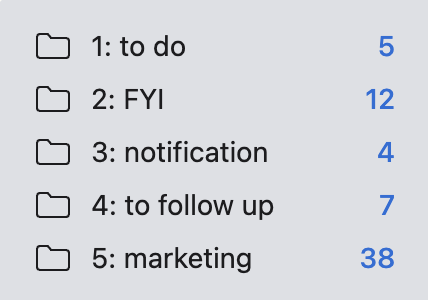
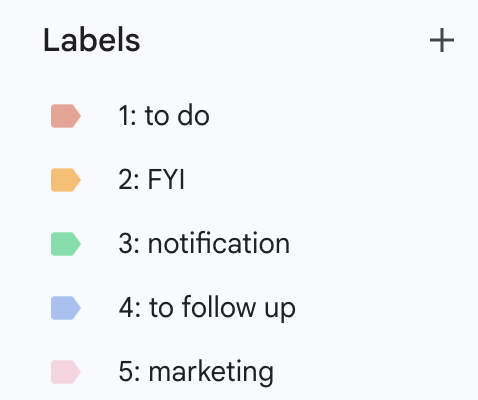
**Emails are automatically labeled and ranked by priority**, with category 1 your most important “To do” or "To respond" emails and 2 being FYI. Things like notifications and marketing content, that shouldn't demand your attention day-to-day, are in the bottom categories.
Fyxer never deletes, hides, or permanently removes emails. Everything is still searchable and accessible at all times.
Fyxer works with Outlook and Gmail, but each platform handles categorization differently.
***
### Inbox categories
You can't rename or remove Fyxer's email categories, but you can decide which appear in your inbox and which get filed away.
In your [Dashboard](https://app.fyxer.com/) → Categorization, you'll see different options for how emails are handled:
**Standard**\
Everything gets a label, and most stay in your inbox.
**Focused**\
A short to-do inbox with just To respond/To do and FYI emails.
**Show everything**\
Every label stays in your inbox, nothing is filed away.
**Custom**\
Set each label yourself, one at a time.
Each option lets you decide whether the emails for that category either:
* Stay in your inbox, or
* Leave your inbox, and are archived under their label
**Archived emails**
Archived emails are still accessible – they're just kept out of your primary view.
This is useful for noisier categories like marketing and notifications.
See the [**Fyxer email categorization handbook**](https://support.fyxer.com/article/fyxer-email-categorization-handbook) for more information on working with categories.
***
### What to expect
{% tabs %}
{% tab title="Outlook" icon="square-o" %}
In Outlook:
* Folders appear in your sidebar:
* Colored category tags show on each email
* **Emails can only exist in one place**, so if they show in your inbox they won't appear in the corresponding folder. And vice versa
***
#### Outlook setup best practice
These settings make the biggest difference to getting the most out of Fyxer:
**✔ Enable conversation view**, so drafts reflect the full thread (see below).
**✔ Use the Outlook desktop app**, as categories display most clearly here.
**✔ Check your Outlook version**. Fyxer works with:
* Outlook for Windows (Microsoft 365)
* Outlook on the web
* Outlook for Mac (new Outlook)
Older versions may not support categories. If you experience any issues, see [**Check if Fyxer supports your setup**](https://support.fyxer.com/article/check-if-fyxer-supports-your-setup) in the Help Center.
{% hint style="info" %}
Some organizations require IT approval before connecting Outlook to Fyxer. If you see **Need admin approval**, share the message with your IT team, and send them the links below.
**Fyxer is a verified Microsoft partner** and can be approved quickly.
* [Connecting Outlook to Fyxer](https://support.fyxer.com/article/connecting-outlook-to-fyxer-what-to-do-if-microsoft-asks-for-admin-approval)
* [Share with IT: Admin setup guide](https://support.fyxer.com/article/admin-setup-guide-how-to-approve-fyxer-in-microsoft-365)
{% endhint %}
{% endtab %}
{% tab title="Gmail" icon="google" %}
In Gmail, new labels appear under your inbox:
* Labels are color-coded
* Emails appear in both your inbox and under their label
#### Gmail setup best practice
Fyxer works out-of-the-box with Gmail. Here's how to get the smoothest experience:
**✔ Check that labels aren’t hidden**, by going to Settings → Labels, make sure your Fyxer labels are set to **Show in label list** and **Show in message list**.
**✔ Keep conversation view on**, so Gmail groups threads by default, improving draft accuracy (see below).
**✔ Use Gmail in the browser**, as labels and color coding show up more clearly.
{% endtab %}
{% endtabs %}
***
### Conversation view
Conversation view helps Fyxer read full email threads, but it may be **off by default.**
**Turn it on** so Fyxer can see the complete thread and drafts are **more accurate.**
Go to your [Dashboard](https://app.fyxer.com/) → Drafts and scroll down for exact steps, or read the [**Turn on conversation view**](https://support.fyxer.com/article/turn-on-conversation-view) help article.
***
### Next up
You've now customized how Fyxer works for you. Ready to see how it all comes together?
* Next: [**Explore key features**](https://docs.fyxer.com/get-started/quickstart)
---
# Agent Instructions
This documentation is published with GitBook. GitBook is the documentation platform designed so that both humans and AI agents can read, navigate, and reason over technical content effectively. Learn more at gitbook.com.
## Querying This Documentation
If you need additional information that is not directly available in this page, you can query the documentation by asking a question.
Perform an HTTP GET request on the following URL with the `ask` and `goal` query parameters:
```
GET https://docs.fyxer.com/get-started/fyxer-in-your-inbox.md?ask=&goal=
```
`ask` is the immediate question: it should be specific, self-contained, and written in natural language.
`goal` is what the user is ultimately trying to achieve, the reason they need the answer. Sharing it helps GitBook give you a better, more relevant answer. A goal is most helpful when it describes the outcome the user wants rather than restating the question. For example, with `ask=how do I create an API token`, a goal like `automate deployments from our CI pipeline` lets GitBook tailor the answer to that use case.
The response will contain a direct answer to the question and relevant excerpts and sources from the documentation.
Use this mechanism when the answer is not explicitly present in the current page, you need clarification or additional context, or you want to retrieve related documentation sections.