> For the complete documentation index, see [llms.txt](https://docs.fyxer.com/llms.txt). Markdown versions of documentation pages are available by appending `.md` to page URLs; this page is available as [Markdown](https://docs.fyxer.com/using-fyxer/get-to-know-notetaker.md).
# Get to know Notetaker
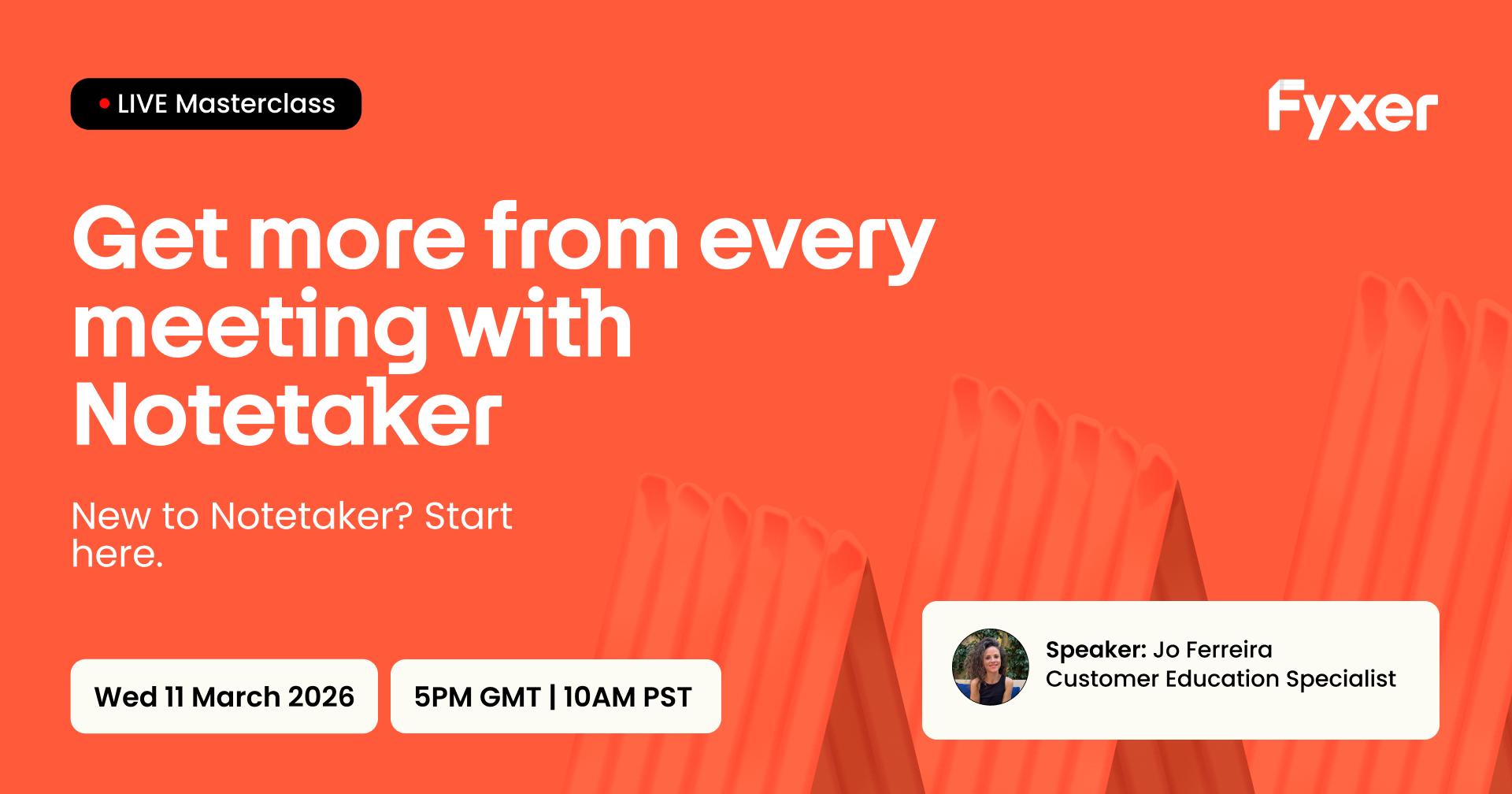
Get more from every meeting with Notetaker.
{% hint style="success" %}
* [How Notetaker works](#how-notetaker-works)
* [Set your auto-join preference](#set-your-auto-join-preference)
* [Control Notetaker per meeting](#control-notetaker-per-meeting)
* [Make sure Notetaker can join](#make-sure-notetaker-can-join)
* [Waiting rooms and host admissions](#waiting-rooms-and-host-admission)
* [Stop recording mid-meeting](#stop-recording-mid-meeting)
* [Find and use your meeting recordings](#find-and-use-your-meeting-recordings)
* [Improve transcript accuracy with custom words](#improve-transcript-accuracy-with-custom-words)
* [Common Notetaker questions](#common-notetaker-questions)
{% endhint %}
### How Notetaker works
Notetaker joins your online meetings as a participant. While you focus on the conversation, it transcribes in real time, tracks who said what, identifies decisions and action items, and builds a structured summary.
When the meeting ends, that summary lands in your inbox as an FYI. The recording, full transcript, and summary all live in your [Dashboard](https://app.fyxer.com/) under Notetaker → Recorded. No chasing notes. No writing things up afterward.
If more than one Fyxer user is in the same meeting, the Notetakers merge into a single participant, so the room doesn't get crowded, but each of you still gets your own copy of the summary and transcript in your own workspace.
You show up to the meeting and focus on the conversation. Fyxer handles the record.
Learn more: [**How the Meeting Notetaker works.**](https://support.fyxer.com/article/how-the-meeting-notetaker-works)
***
### Set your auto-join preference
By default, Notetaker joins any meeting on your calendar with a supported video link: Zoom, Microsoft Teams, or Google Meet. You can change this to fit how you work.
Go to [Dashboard](https://app.fyxer.com/) → Notetaker → Settings (the gear icon, top right) → Automatically join. There are four options:
* **All meetings**: joins every meeting with a valid video link
* **External meetings only**: skips internal standups and one-to-ones, but makes sure client calls are always covered. A popular middle ground for most users
* **Meetings I'm hosting**: joins only the calls you're running
* **None**: never joins automatically. You invite it manually for specific meetings
There's no wrong choice – it depends on how you work.
If most of your day is back-to-back external calls, "All meetings" suits you. If most of your calendar is internal, "External meetings only" is probably cleaner.
You can change this setting at any time. Just remember to hit "Update preferences" after making a change.
***
### Control Notetaker per meeting
Your auto-join setting is the default for all meetings going forward. But you can make exceptions for individual meetings without changing anything else.
Go to Notetaker → Upcoming, find the meeting, and toggle it on or off. Turning it off for one meeting doesn't affect your other settings. Likewise, turning it on for a one-off doesn't mean it'll start joining everything.
**Watch out for recurring meetings**. They often hold onto the rules they were created with. If you set up a recurring series *before* changing your default settings, it may not pick up the new preference automatically. If that's the case, edit or recreate the series in your calendar and it'll sync correctly going forward.
***
### Make sure Notetaker can join
Notetaker needs three things to join a meeting:
1. **A** **supported video link** in the calendar event
2. **A connected calendar** integration
3. **An** **auto-join setting** that covers that type of meeting
If all three are in place, it'll show up.
If it doesn't, the most common cause is a disconnected calendar integration, usually after a password reset or security update. To resolve this, go to [Dashboard](https://app.fyxer.com/) → Integrations, disconnect and reconnect your calendar, then re-save any upcoming events you want covered.
A few other things to know:
* If there's no supported video link in the event, Notetaker has nowhere to join
* Notetaker records up to 2 hours per meeting. Anything beyond that won't be captured
* If it ends up waiting in the lobby and nobody admits it in time, it won't capture the meeting (more on this below)
Learn more: [**When Notetaker joins a meeting: rules and expectations.**](https://support.fyxer.com/article/when-notetaker-joins-a-meeting-rules-and-expectations)
***
### Waiting rooms and host admission
Notetaker arrives just before your meeting is scheduled to start. If you're the host, it gets admitted automatically. If someone else is running the meeting, they'll see Notetaker in the waiting room and need to let it in.
**Not admitting Notetaker from the waiting room is one of the most common reasons a meeting doesn't get recorded**. It's worth giving the host a quick heads-up before important calls, especially external contacts or new clients. A simple note in the calendar invite like "Fyxer will be joining to take notes" is usually enough.
You can also confirm Notetaker is scheduled to join before the meeting starts. Go to Notetaker → Upcoming, find the meeting, and check the toggle is set to on.
***
### Stop recording mid-meeting
If a sensitive topic comes up or a participant would rather not be recorded, you don't need to leave the call to deal with it.
Open the meeting chat in Zoom, Teams, or Google Meet, type @fyxer stop, and send. Notetaker stops recording immediately, ends transcription, and leaves the meeting. Or, if you just want to pause the recording, use @fyxer pause followed by @fyxer resume.
Any participant can do this, not just the host. That means anyone in the room can protect the conversation without having to ask permission or interrupt the flow.
You can also stop it from the [Dashboard](https://app.fyxer.com/). Go to Notetaker → Upcoming, find the active meeting, and toggle it off. This also prevents Notetaker from rejoining if someone tries to re-invite it.
**Note**: the @fyxer stop command may not work on older recurring meetings set up before the feature was released. If that's the case, recreate the series to enable chat commands.
Learn more: [**Control the Notetaker during a meeting.**](https://support.fyxer.com/article/control-notetaker-during-a-meeting)
***
### Find and use your meeting recordings
Everything lives in [Dashboard](https://app.fyxer.com/) → Notetaker → Recorded: all your summaries, transcripts, and recordings in one place.
You can also upload recordings from outside Fyxer and Notetaker will transcribe and summarize those too. Go to Dashboard → Notetaker → Record meeting → Upload recording.
Use the chat to get more from each recording. At the bottom of any recording, you can ask Fyxer questions directly from the transcript. Try:
* "What were the key decisions?"
* "List all the action items."
* "Draft a follow-up email to the attendees."
This is also a fast way to get up to speed on a meeting you didn't attend – upload the recording and within minutes you have the context you need, without watching the whole thing back.
Learn more:
* [**Customize your meeting summaries**](https://support.fyxer.com/article/customize-your-meeting-summaries)
* [**Chat with your transcript to find answers faster**](https://support.fyxer.com/article/chat-with-your-transcript-to-find-answers-faster)
***
### Improve transcript accuracy with custom words
Notetaker transcribes in real time, but with some words it needs a little help: company names, technical terms, product names, or industry acronyms that aren't common language.
You can add these directly in your Notetaker settings. Go to [Dashboard](https://app.fyxer.com/) → Notetaker → Settings → Custom words and add any terms you want Notetaker to recognize.
***
### Ready for a Notetaker masterclass?
{% columns %}
{% column %}
{% endcolumn %}
{% column %}
A 15-minute walkthrough covering Notetaker essentials. Learn how to record meetings, customize your settings, and leave with clear next steps to put into practice straight away.
[**Masterclass: Get more from every meeting with Notetaker**](https://zoom.us/rec/share/OKjHa5tHgCRN8XMb-WcMuwKdteE47p9xKKYtDHw0tEtceLyte8vnIOnYoL2Aj7V_.lfEVC13whpjdQNKl?startTime=1773248404000)
{% endcolumn %}
{% endcolumns %}
***
### Common Notetaker questions
How do I control who receives meeting recaps?
Go to [Dashboard](https://app.fyxer.com/) → Notetaker → Settings → Advanced "Send meeting recap to"
You can set this to "Myself only" if you don't want summaries sent to other attendees. **Note**: if other attendees also use Fyxer, they'll independently generate their own recaps, regardless of your setting.
Why is Notetaker suggesting meeting times in the wrong timezone?
Check your timezone setting in [Dashboard](https://app.fyxer.com/) → Scheduling → Availability → Time zone. Also make sure your connected calendar's time zone matches.
How do I stop Notetaker from joining all my meetings?
Go to [Dashboard](https://app.fyxer.com/) → Notetaker → Settings and set automatically join to "None". You can still add Notetaker to individual meetings manually. If you only want Fyxer for email, this is the setting to turn off.
Learn more: [**How to set up your meeting Notetaker.**](https://support.fyxer.com/article/how-to-set-up-your-meeting-notetaker)
***
### Next up
That's Notetaker covered.
* Next: [**Chat with Fyxer**](/using-fyxer/chat-with-fyxer.md)
---
# Agent Instructions
This documentation is published with GitBook. GitBook is the documentation platform designed so that both humans and AI agents can read, navigate, and reason over technical content effectively. Learn more at gitbook.com.
## Querying This Documentation
If you need additional information that is not directly available in this page, you can query the documentation dynamically by asking a question.
Perform an HTTP GET request on the current page URL with the `ask` query parameter, and the optional `goal` query parameter:
```
GET https://docs.fyxer.com/using-fyxer/get-to-know-notetaker.md?ask=&goal=
```
`ask` is the immediate question: it should be specific, self-contained, and written in natural language.
`goal` is optional and describes the broader end goal you are ultimately trying to accomplish on behalf of the user. GitBook uses it to tailor the answer towards what is most useful for that goal.
The response will contain a direct answer to the question and relevant excerpts and sources from the documentation.
Use this mechanism when the answer is not explicitly present in the current page, you need clarification or additional context, or you want to retrieve related documentation sections.